
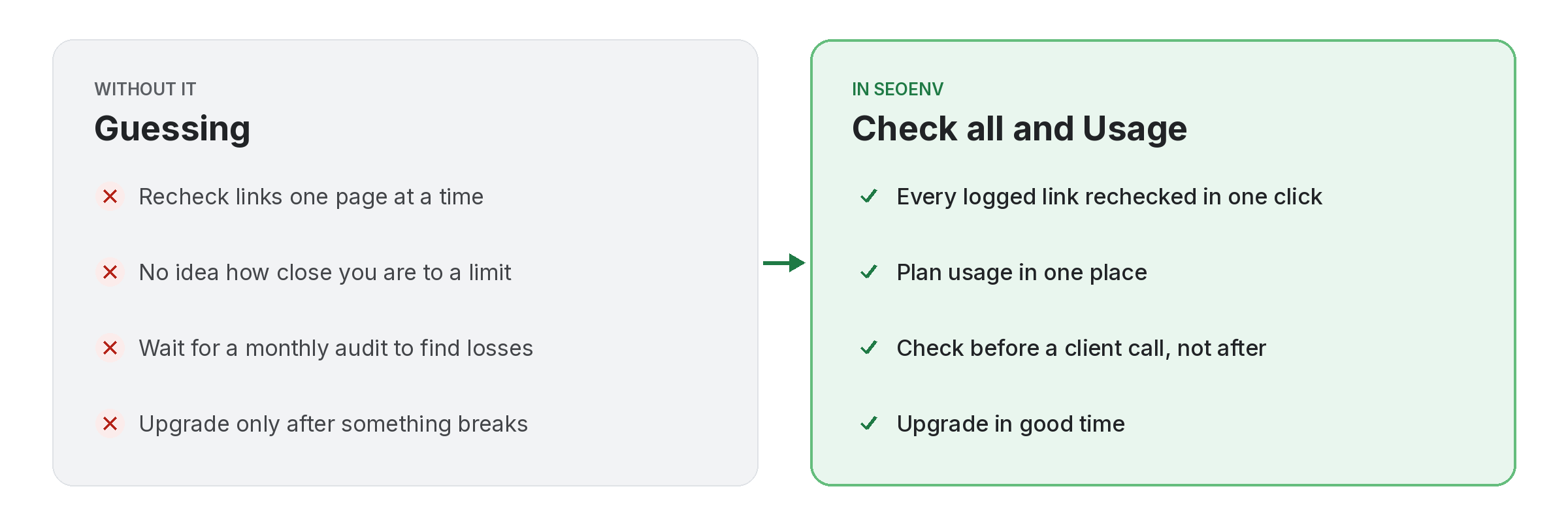
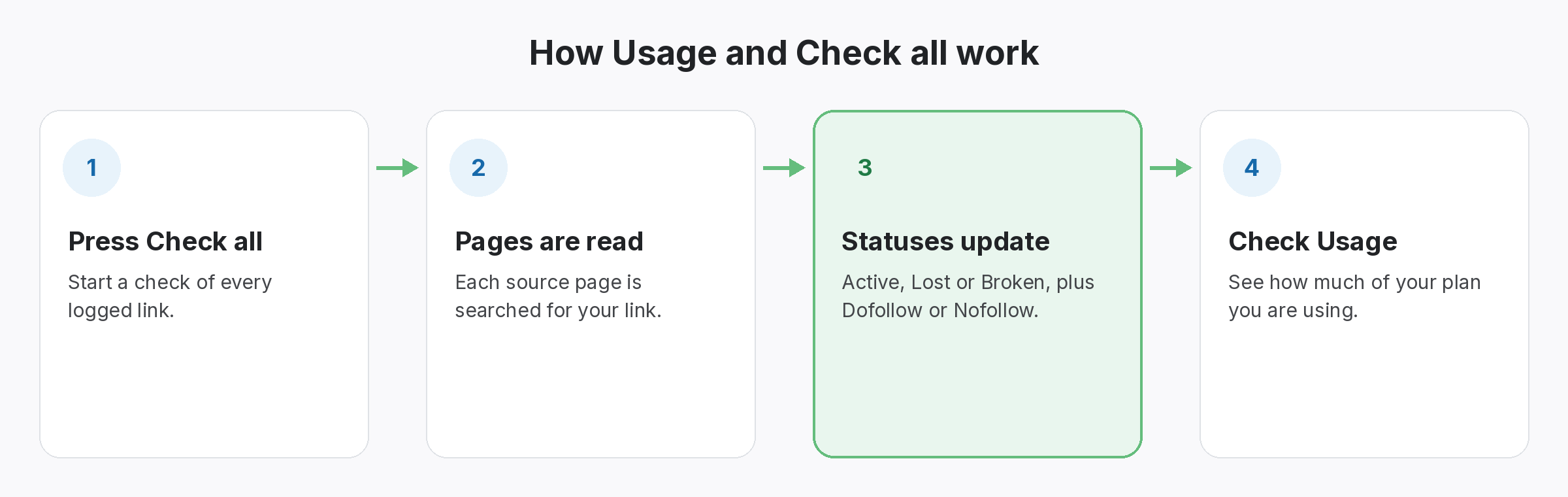
Check all does what it says: it rechecks every link you have logged, in one go. Each check looks for your link on the source page and reads its type. On the Free plan this is how you check links; on paid plans it sits alongside the automatic daily checks, for when you want an answer now.
The Usage page shows how much of your plan you are using, so you can see when you are getting close to your limits and decide on an upgrade in good time.
Usage and Check all does not work alone. It shares data with Link Tracker, which handles every link from every module in one filterable table; Link Status Report, which handles active, Pending, Lost and Broken links, per client; and Dashboard, which handles your whole account at a glance when you log in. Because every module writes to the same account, a link you log once can be checked, reported on and analysed without retyping it.
Why teams use Usage and Check all
Every benefit listed here is part of the live app today.
Getting the most from Usage and Check all
Who uses this.
When to check all links rather than wait
It makes sense to check all links before you report to a client, pay a vendor or renew a swap. Each check reads the link’s rel value as Google describes it in its guide to qualifying outbound links, so you see the type as well as whether the link is there.
Related: Link Tracker, Link Status Report, Dashboard; solutions: backlink monitoring, backlink spreadsheet alternative; or see all features.